 About the File Import Page
The File Import page gives you the ability to electronically post new pledges or contribution records into your system from your bank’s lockbox file thus eliminating the need for manual data entry.
The feature is ideal for organizations that use lockbox banking. Under this service, the bank receives all donor payments and pledges, processes them, and then deposits the monies directly into your organization's bank account. The bank captures the payment information in an electronic file (.csv format), which you can directly import into Offering. To ensure that donor payments and remittance information is correctly read and posted, you must set up the lockbox service correctly. Proper setup requires collaboration with your organization, your banking institution, and ParishSOFT. To get started, contact the ParishSOFT Professional Services group for assistance. A consultant will work with you and your vendor to set up your lockbox service and test it to ensure that it is working correctly.
You must either have Organization Admin access rights or Offering > Import permissions tied to your login credentials. If you do not have Offering > Import permissions, the Imports option is not visible in Offering menu in the navigation bar.
Access rights and permissions are granted to individual users in their staff records, accessed through the Manage Staff page in the Administration module. You must have Organization Admin rights to view the page and assign permissions. For details, see the online Help for the ParishSOFT Administration module.
Overview of the File Import Page
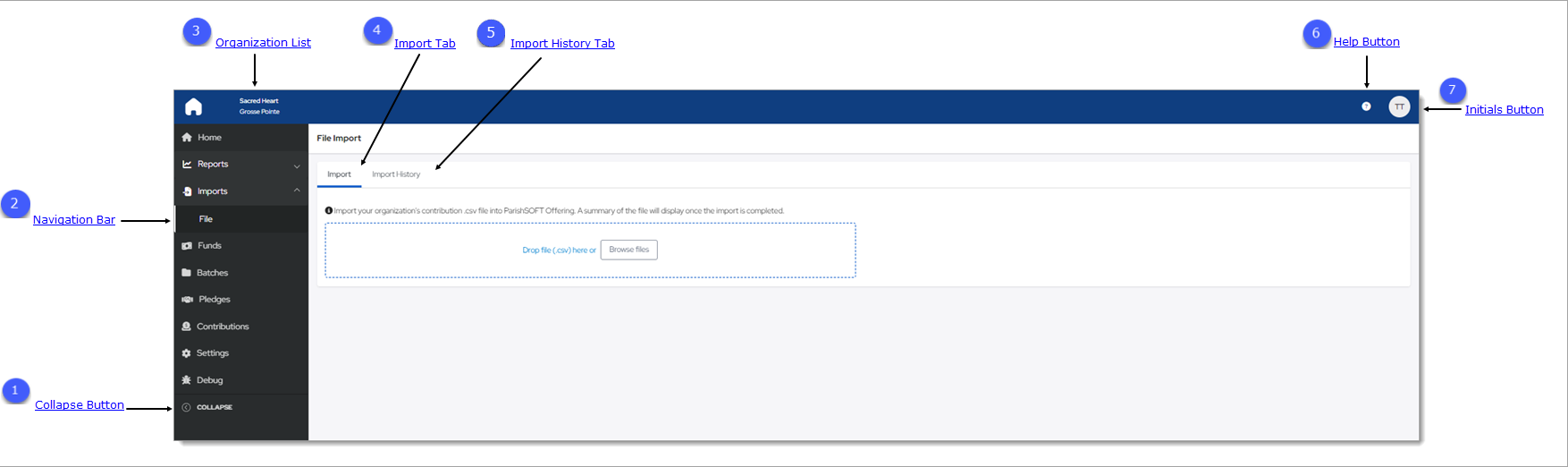
On the File Import page, you can import a lockbox file containing payment information into Offering. The illustration below identifies the main elements on the File Import page. Click a numbered link to jump to a detailed description of an element.
 Collapse Button
By default, the Navigation Bar is expanded, so the entire name of each page is visible. If you need more viewing space in the right panel, you can collapse the menu by clicking  . Doing so minimizes the
menu so that only the page icons are visible:
. Doing so minimizes the
menu so that only the page icons are visible:

To return the Navigation Bar back to the expanded position, click  (Expand). Note that the state (expanded or minimized) of the menu that you specify on any page stays the same
on all pages until you change it.
(Expand). Note that the state (expanded or minimized) of the menu that you specify on any page stays the same
on all pages until you change it.
 Navigation Bar
The Navigation Bar is the menu that sits on left side of the Settings page (and on every other page in the module). The menu lists the module's primary pages and provides a way for you to quickly move from one page to another. When you want to view a specific page's content, simply select the page option.
 Organization List
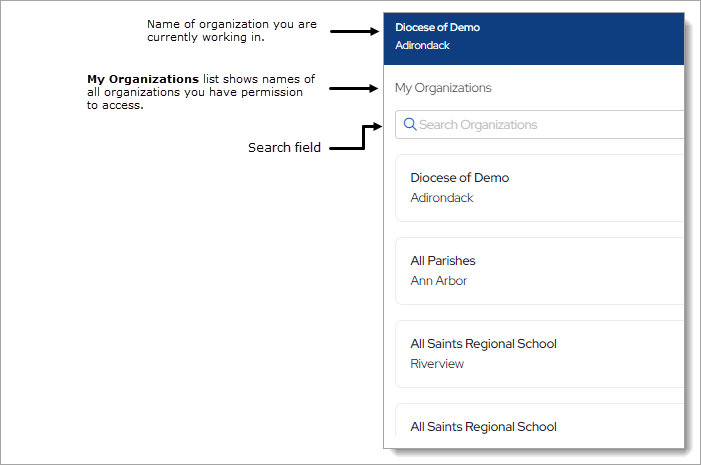
The Organization list is located above the Navigation Bar. By default, this dropdown list is closed and shows the name of the organization you are working in.
- If you have access to one organization, the list displays the name of your organization. The dropdown functionality is disabled because you have limited access.
- If you have access to multiple organizations, the list displays the name of the organization you are working on or last worked in. Select the organization’s name to display a list of all the organizations you have permission to access. If the list is long, you can either type the organization’s name into the Search Organizations field (see illustration below) or use your mouse to scroll through the list to find the organization you want and then select it.
 Import Tab
The Import tab provides functions that enable you to import lockbox files into Offering. You can use either of the following methods to handle the import:
 Click the arrowhead next to an option to expand it and view its description.
Use this procedure to import a file using the drag and drop process:
- Find the file on your computer that you want to import.
- Select the file but do not release the mouse button. Then, while holding button drag the file to the Drop file here area (see the previous illustration).
- Release the mouse button to import the file.
The file you want to import must have .csv format.
Browse files ButtonBrowse files Button
Use this procedure to locate the file on your computer that you want to import:
- Click
 .
. - Find the file you want to import. Then, select it.
- Follow your browser's procedure to import the file into Offering.
The name of the imported file appears in the Import field. Note that batch files are not required to have unique names.
After a file is imported, the system displays a summary of its contents. Use the information provided in the summary to verify the accuracy of the pledges in the imported file.
 Import History Tab
The Import History tab lists the batch files that were previously imported into Offering. Click this tab to view a list of previously imported files. In the Batch column, click the desired link to open the Batches page to view details for the imported batch file.
 Help Button
Click  to access the Offering Help. The Help opens in a separate browser so that you can view it while working in the module. The Help provides an
overview of Offering concepts and features and offers step-by-step instructions on how to perform specific Offering tasks.
to access the Offering Help. The Help opens in a separate browser so that you can view it while working in the module. The Help provides an
overview of Offering concepts and features and offers step-by-step instructions on how to perform specific Offering tasks.
 Initials Button
This button shows the initials of the logged-in user. Clicking the button display the Log Out option. Click this option to log out of Offering.

Related Topics