How to Enroll a Registered Student in a Class
- In the navigation bar, select Registration to open the Registration page.
- In the Terms list, select the desired term.
The Registration Responses grid lists the names of students registered in the selected term who are not yet assigned to classes. These students were either registered manually by staff or self-registered through the online registration process in My Own Church (MOC).
- To enroll a student in a class, complete the following:
- Select the name of the student to open their registration record. For example:
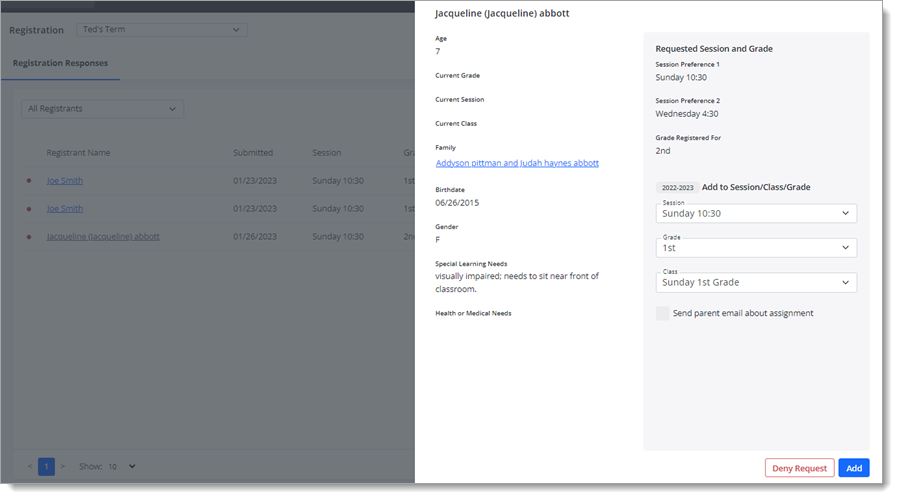 The record provides details about the student (for example, age and gender) and shows their class request and session preferences, if applicable.
- Review the Session, Grade, and Class selections and make changes, if necessary.
- If you want to send an email to the parents informing them about the class assignment, select the Send parent email about assignment checkbox.
- Select the name of the student to open their registration record. For example:
- Click
 to approve the registration request.
The student is enrolled in the selected class. Their name is added to the list on the Students tab and to the roster for the selected class.