Attendance Report Filters
The table below lists and describes the filter settings used to configure the following reports:
- Attendance Report
- Attendance By Date
- Blank Attendance Sheets
- Sign-in Sheet
|
Filter Option |
Description |
|
This dropdown lists all terms in your religious education program. The previously selected term is the default selection. To change the term, select the desired one from the list. |
|
|
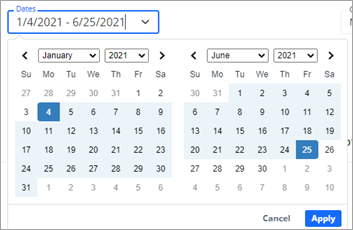
Specify the date range by selecting a date from the From and To calendars.
Then, click |
|
|
These settings let you specify how the information in the report should be sorted.
|
|
|
These options let you choose the category you want to filter on:
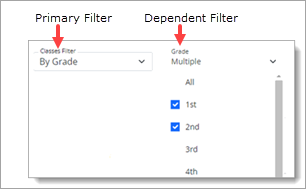
With the exception of the default option, each option in Classes Filter list is linked to secondary filters that display automatically to enable you to further narrow down your initial filter selection. By way of illustration, in the example below the By Grade option is initially selected in the Classes Filter dropdown. The system automatically displays a second dependent filter, Grade, that contains a list of options specific to the By Grade filter. The user can select Like the By Grade option, the By Session, By Department, and Selected Classes options each generate secondary filters with a dropdown list of choices you can select to narrow down the initial filter criteria. |
|
|
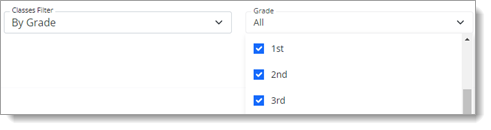
This filter is a conditional or dependent filter linked to the selection made in Classes filter (see previous entry) dropdown list. When you select the By Grade setting in the Classes Filter list, the system displays the Grade dropdown list, which contains the grades configured for your program. In the list, select the grade or grades to include in the report.
|
|
|
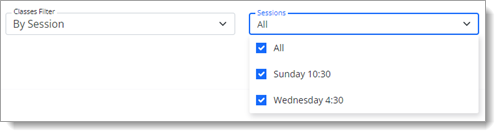
This filter is a conditional or dependent filter linked to the selection made in Classes filter (see previous entry) dropdown list. When you select the By Session setting in the Classes Filter list, the system displays the Sessions dropdown list, which contains the sessions configured for your program. In the list, select the session or sessions to include in the report.
|
|
|
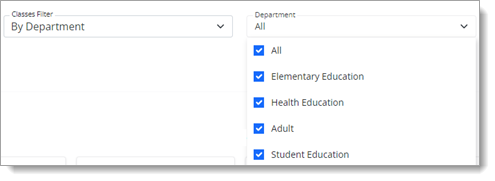
This filter is a conditional or dependent filter linked to the selection made in Classes filter (see previous entry) dropdown list. When you select the By Department setting in the Classes Filter list, the system displays the Department dropdown list, which contains the departments configured for your program. In the list, select the department or departments to include in the report.
|
|
|
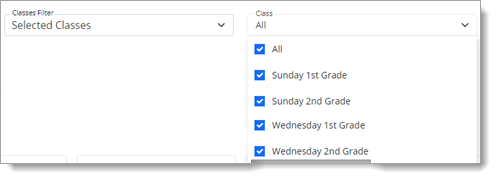
This filter is a conditional or dependent filter linked to the selection made in Classes filter (see previous entry) dropdown list. When you select the Selected Classes setting in the Classes Filter list, the system displays the Class dropdown list, which contains the classes configured for your program. In the list, select the class or classes to include in the report.
|
|
|
Print Blank Attendance |
Generates blank attendance sheets. |
|
Print By Date |
Generates a report in order by attendance date. |
|
Hide Unenrolled/Transferred Students |
Lets you control the visibility of the names of unenrolled and transferred students in your attendance reports.
The setting you select also applies to the Blank Attendance and Print By Date versions of the Attendance report. |
 .
.
Related Topics
How to Create an Attendance By Date Report
How to Create an Attendance Report
How to Create Blank Attendance Sheets