How to Create Member Mailing Labels
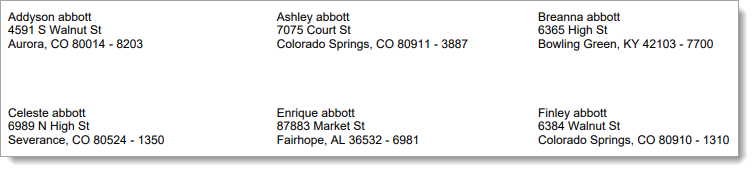
The Mailing Labels: Member report generates one member mailing label for each individual matching your filter criteria. The mailing labels are compatible with the Avery 5160 address label template.
- In the navigation bar, open the Reports group. Then, select the Labels/List option to open the Labels/List Reports page.
- Select the
 Mailing Labels report tile.
 - In the Mailing List Report window, select the Members option.
- Select the desired filter settings. For descriptions of the report filters, go to Label and List Report Filters.
- Click
 .
. - The system downloads a PDF of the report to your computer. Follow your browser's process for opening downloaded files.
- If desired, print this report.
Sample Mailing Label Report: Member
Related Topics
About the Labels/List Reports Page