Why Aren't Pages Loading or Why Am I Seeing Old Content?
If you are having trouble loading a page in the application or if you are seeing old content, this topic provides some information that may help you fix those issues.
Some of the problems you experience when viewing pages can be resolved by trying the following methods in the order given:
After trying a method, check whether the system responds as expected.
Refreshing the Page
Sometimes a quick page refresh is enough to fix a problem. A refresh causes the browser to reload the web page. If the browser determines that the page's data has been modified, it obtains the latest version. If not, the browser continues to use the cached version.
To refresh a web page, try one of these methods:
- Click the Reload button
 . This button is located at the top of the browser.
 - On Windows, pressing F5 on your keyboard in most browsers causes the current page to refresh.
- On Mac, pressing Shift + R forces a page refresh.
Clearing Your Browser's Cache
If refreshing the page does not work, try clearing the contents of your browser's cache. The action of clearing cache forces the browser to remove any temporary files that might be causing a problem, re-download all elements, and then reload the website's most current data. After cache clears, you can then start the browser with a clean slate.
What Is Cache?
A browser's cache (pronounced "cash") is a temporary storage location in your computer that holds web page data for future use. Any time you open a web page, all of the data on the page (for example, images, forms, and scripts) is sent to a temporary location (called "cache") on your hard drive. When you re-visit a web page, the browser checks to see if it already has data for the page stored in cache. If it does, the browser shows you the data from cache instead of downloading the page again. The browser saves the contents of the pages you open in cache so that it can load the pages faster when you visit them. Cache, therefore, is a neat function that can save you lots of time and frustration because your pages load faster. But, when old content or corrupt data is stored in cache, this causes problems. In this situation, it is best to clear the cache and start over.
How to Clear a Browser's Cache
The procedure you use to clear your browser's cache is browser dependent. Be sure to follow the instructions below for the browser you are using.
Microsoft Edge
- Open Microsoft Edge.
- In the upper-right corner of the address bar, click this button:
 (Settings and more).
- Select the
 Settings option to open the Settings menu.
- Select the Privacy, search, and services option.
- Scoll down to the Clear browsing data section:
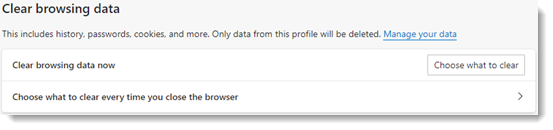
- Click
 to open the
Clear browsing data window.
to open the
Clear browsing data window. - Select the Cached images and files checkbox.
- Click
 .
.
The system clears the contents from the browser's cache.
- Close the browser and re-open Microsoft Edge.
Google Chrome
-
Open Google Chrome.
-
In the upper-right corner of the browser window, click
 .
. -
Select the More Tools option. Then, select Clear browsing data to open the Clear browsing data window.
-
If the Advanced tab is not selected, select it. Then, as shown in the following illustration, change the Time range option to All time and select the Cached images and files checkbox:
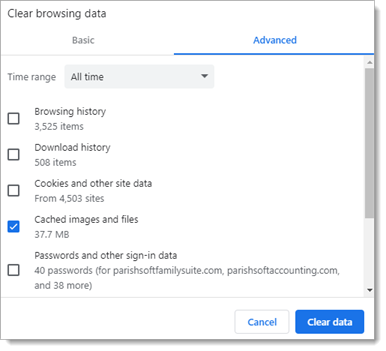
-
Click
 .
.
The system clears the contents from browser's cache. -
Close the browser and re-open Google Chrome.
Firefox and Firefox Quantum
- Open Firefix or Firefox Quantum
- In the upper-right corner of the browser window, click
 (Open application menu).
 - Select the Settings option.
- In the left panel, select the Privacy & Security option. Then, in the right panel, scroll down to the Cookies and Site Data section:
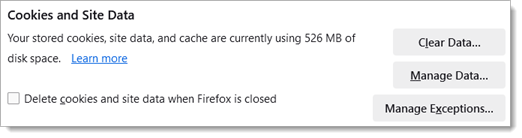
- Click
 to open the Clear Data window. Then, select the Cached Web Content checkbox only:
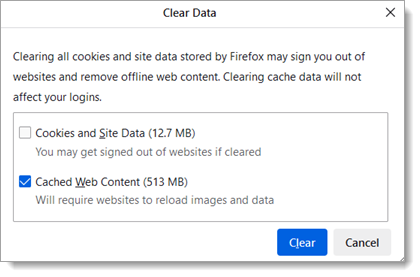
- Click
 .
.
The system clears your browser's cache.
- Close the browser and re-open Firefox or Firefox Quantum.
Safari for macOS
- Open Safari.
- Click the Safari tab in the top menu bar.
- Select the Settings option.
- Select the Advanced tab. On this tab, make sure that the Show Develop menu in menu bar checkbox is selected.
- Exit Settings.
- In the top menu bar, select the Develop tab. Then, select the Empty Caches option.
The system clears your browser's cache.
- Close and then re-open Safari.
Safari for iOS
- Open the Settings app.
- Scroll down and select the Safari option.
- Select the Clear History and Website Data option.
You are prompted to confirm the clearing of data.
- Click Clear.
The system clears your browser's cache.
Restarting Your Computer
If you are still experiencing problems after clearing your browser's cache, restart your computer.